(1) Installing extra gedit plugins :-
$ sudo apt-get install gedit-plugins
(2) Installing Textmate 'Monaco' font
Download from http://www.gringod.com/wp-upload/software/Fonts/Monaco_Linux.ttf and execute below commands:

(3) Installing syntax color scheme darkmate.xml
Download the darkmate.xml file from http://grigio.org/files/darkmate.xml
From gedit, go to Edit -> Preferences -> Font & Colors. Then click Add button and locate the download file(darkmate.xml). Also select the Monaco font.

(4) Activating installed plugins from gedit -> Edit -> Preferences -> Plugins
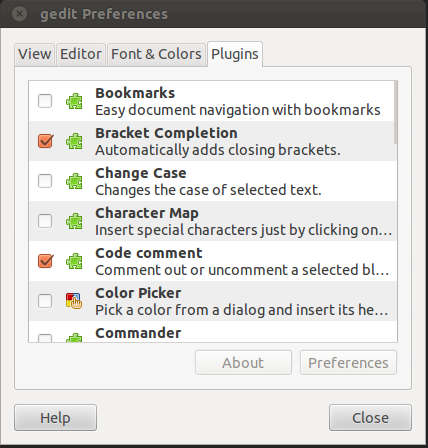
From this pane,we can enable following plugins as per our requirements :-
-Bracket Completion
-Code Comment
-File Browser Panel
-Snippets
-Word Completion, etc.
With these settings, your gedit now looks like Textmate :-

If you want to avoid the above steps, then we have also another option called Gmate. GMate is a collection of plugins, themes/styles and other improvements to get TextMate-like features in Gedit. The package will add some themes and plugins you can enable/disable from the Gedit preferences. To install GMate in Ubuntu, use the following commands:

In the upcoming posts, we will also try some other text editors available for Linux Ubuntu.


 Posts
Posts


The embedded terminal text-colour is set to White. How can I change it to Black?
ReplyDelete1 Problem: HP Printer not connecting to my laptop.
ReplyDeleteI had an issue while connecting my 2 year old HP printer to my brother's laptop that I had borrowed for starting my own business. I used a quick google search to fix the problem but that did not help me.
I then decided to get professional help to solve my problem. After having received many quotations from various companies, i decided to go ahead with Online Tech Repair (www.onlinetechrepairs.com).
Reasons I chose them over the others:
1) They were extremely friendly and patient with me during my initial discussions and responded promptly to my request.
2) Their prices were extremely reasonable.
3) They were ready and willing to walk me through the entire process step by step and were on call with me till i got it fixed.
How did they do it
1) They first asked me to state my problem clearly and asked me a few questions. This was done to detect any physical connectivity issues with the printer.
2) After having answered this, they confirmed that the printer and the laptop were functioning correctly.
3) They then, asked me if they could access my laptop remotely to troubleshoot the problem and fix it. I agreed.
4) One of the tech support executives accessed my laptop and started troubleshooting.
5) I sat back and watched as the tech support executive was navigating my laptop to spot the issue. The issue was fixed.
6) I was told that it was due to an older version of the driver that had been installed.
My Experience
I loved the entire friendly conversation that took place with them. They understood my needs clearly and acted upon the solution immediately. Being a technical noob, i sometimes find it difficult to communicate with tech support teams. It was a very different experience with the guys at Online Tech Repairs. You can check out their website www.onlinetechrepairs.com or call them on 1-914-613-3786.
Would definitely recommend this service to anyone who needs help fixing their computers.
Thanks a ton guys. Great Job....!!